


Sold Out


 video
video

have questions?
Always the correct part
We know our products
Mounting, Balancing
Free shipping on orders $100+


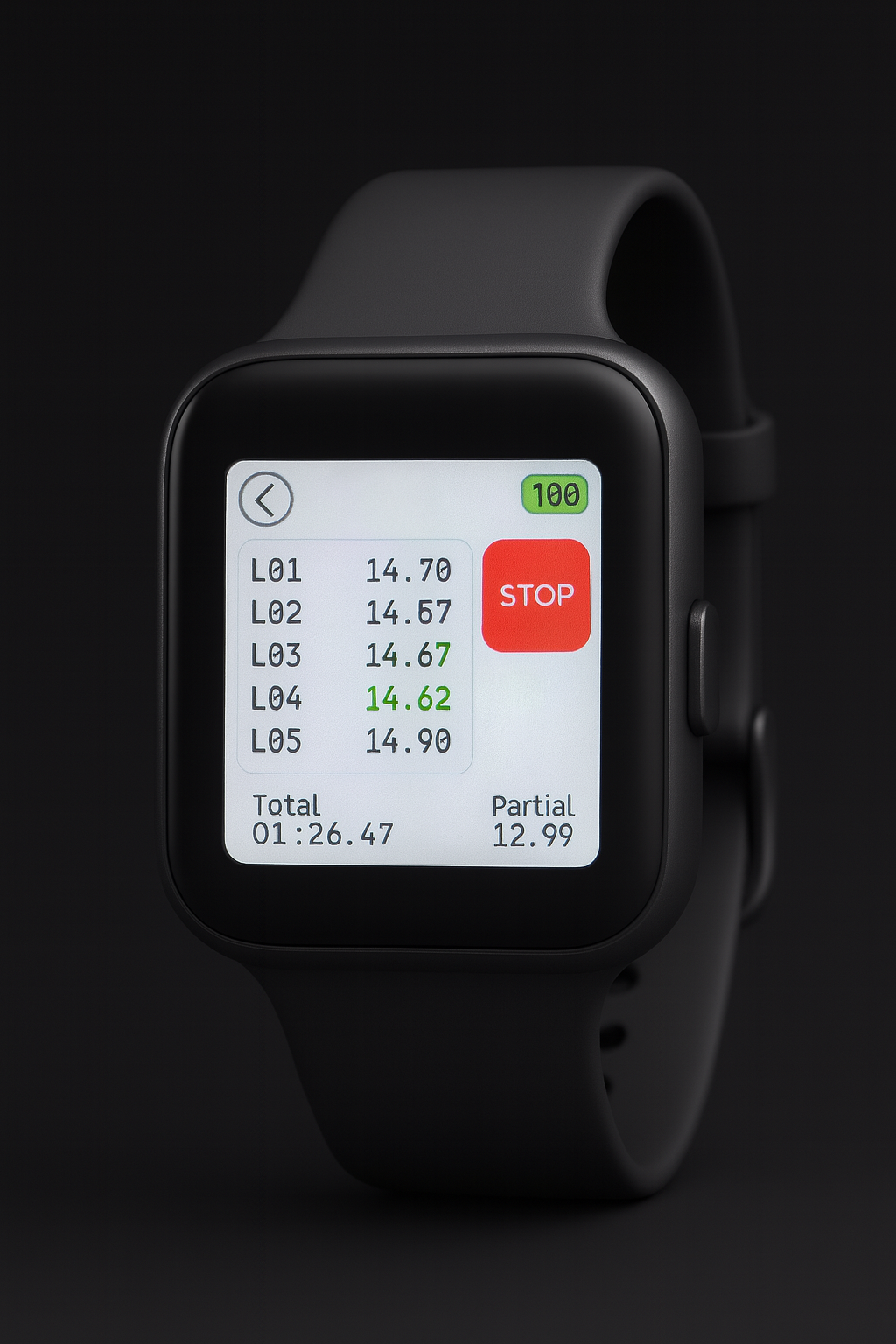
Everything racers need, finally in one smartwatch!
Timing Hub
Trackside companion app
The first smartwatch designed specifically for racing, combining all essential functions, interface design, and update capabilities in one comprehensive device.
The world's first smartwatch designed specifically for racing with race control, live data streaming, precision timing, and strategic analytics built right into your wrist.
That's all what you want.
The complete smartwatch device
Premium protective storage case
Micro-B charging cable included
Continuous firmware updates, technical support, and access to future feature releases
https://iwi.it.com/manuals/PITWATCH_USER_MANUAL_EN.pdf
Introduction
PitWatch is a specialized racing timing watch for RC car enthusiasts and pit crews,
providing comprehensive race timing, pit stop management, fuel strategy
calculations, and real-time transponder system integration.
Key Features:
• Multi-mode operation (Race, Stopwatch, Strategy, Transponder)
• Race timing with countdown and pit stop tracking
• Fuel consumption calculations
• Real-time transponder system integration via WiFi
• Automatic time keeping
• Wireless updates
• Power-efficient with auto-sleep modes
Getting Started
Power On
1. Short press physical button
2. Tap welcome screen to proceed
3. Swipe left to Mode Selection
Power Off
• Long press physical button
Navigation
• Swipe Left/Right: Navigate between pages
• Swipe Up/Down: does nothing
• Back Arrow (top-left): Return to Mode Selection
• Physical Button:
• Short press: Action button (start race, lap trigger)
• Long press: Power off
4
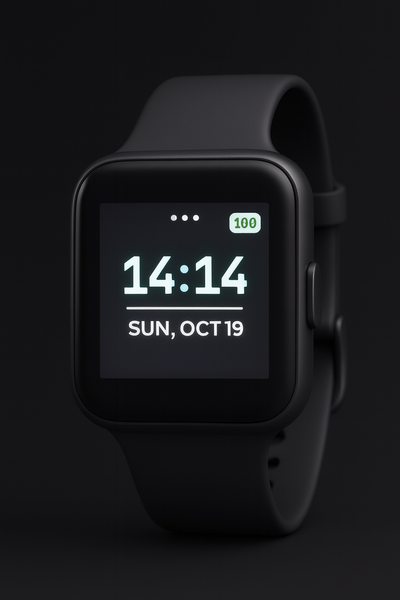
Watch Face
Digital watch face with time/date display and power management.
Setting Time & Date
1. Tap and hold (2 sec) on watch face
2. Time: Use Hour (00-23) and Minute (00-59) rollers
3. Date: Use Day (01-31), Month (JAN-DEC), Year (2020-2050) rollers
4. Tap SAVE to confirm or CANCEL to discard
Note: Time persists after power off.
Power Management
• Screen turns off after 10 seconds of inactivity
• WiFi enters low power after 30 mins (when screen off)
• Tap anywhere to wake
5
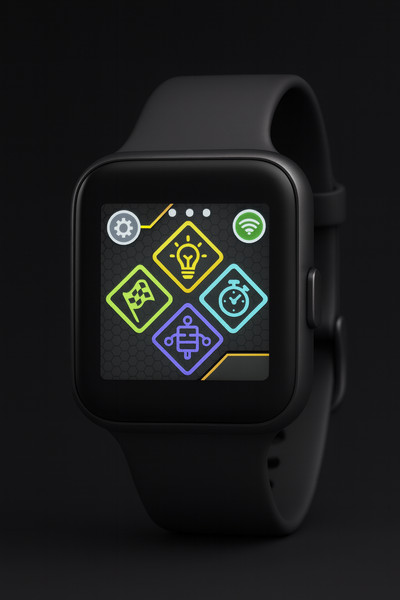
Mode Selection
Central hub for all functions. Access from Watch Face (swipe left) or any mode.
Main Modes (4 Buttons)
Race (Left): Race session with countdown and timing
Stopwatch (Right): Independent stopwatch with lap timing
Strategy (Top): Fuel consumption calculator
Transponder (Bottom): Real-time lap data from transponder system
Additional Controls
WiFi Button (Top-Right)
Short Press: Toggle WiFi
• Grey: Off
• Blue: Connecting
• Green: Connected
Long Press (3 sec): Open WiFi settings
Update Settings (Top-Left): Gear icon for software updates
6
Race Mode
Core timing feature with pit stop management and fuel strategy.
Starting a Race
1. Tap Race button from Mode Selection
2. Set Refuel Time (pit stop duration):
• Minutes: 0-9
• Seconds: 0-55
3. Set Race Duration: 10-60 minutes
4. Press physical button to begin
7
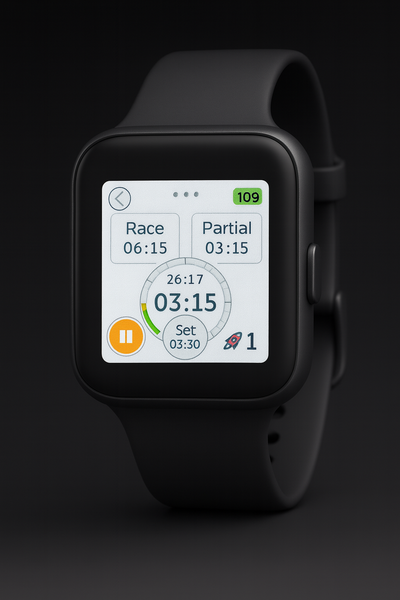
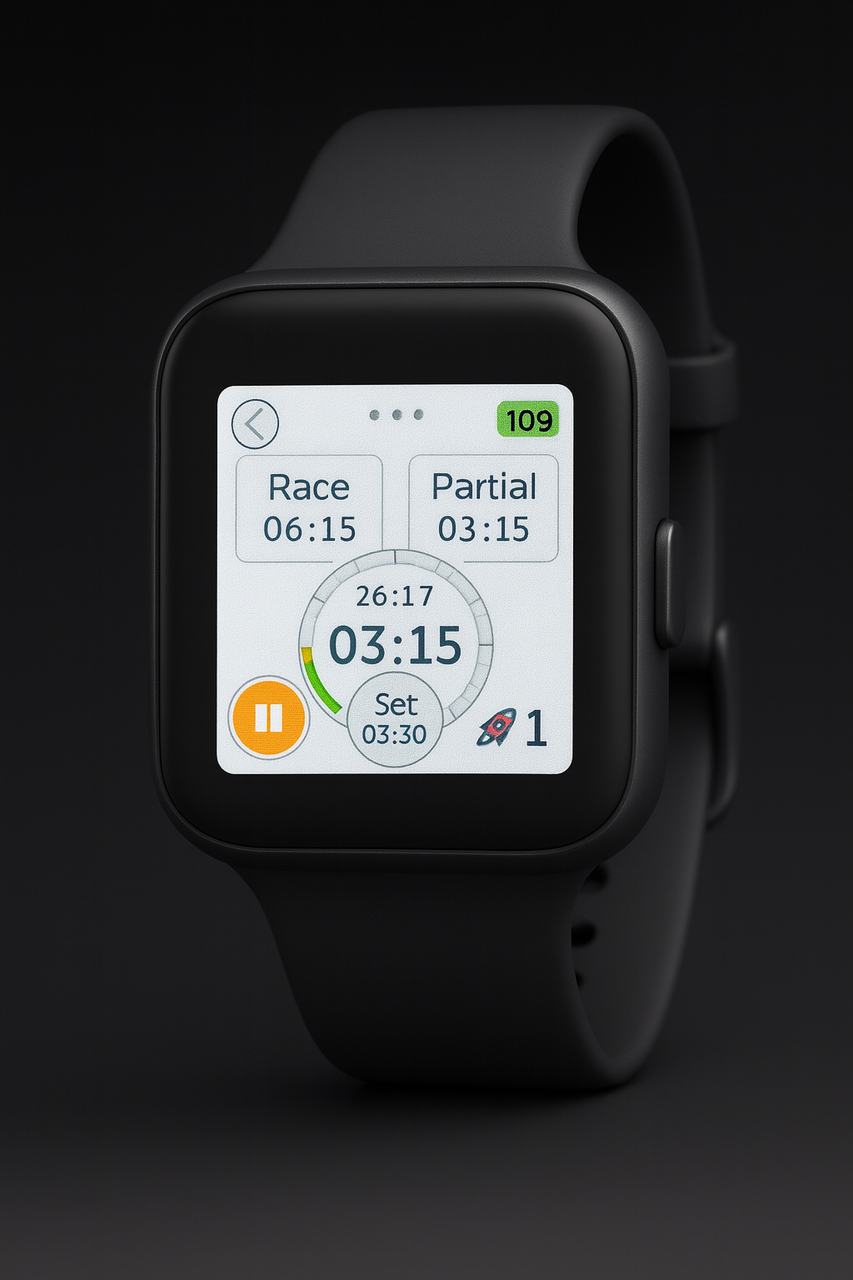
Race Interface
Race Timer (Top): Total elapsed time (HH:MM:SS) - never resets
Partial Timer (Middle): Time since last pit stop - resets at pit
BOX Counter (Right): Pit stops completed
Time to Race End (inside bottom arc, small): Remaining race time (MM:SS)
Next Pit Timer (inside bottom arc, large): Countdown to next pit (MM:SS)
• Visual arc changes green→red
• Vibrates at 30 sec (1x) and 15 sec (2x)
Controls
SET button (small circle below arc)
• Long press (3 sec): Adjust pit stop duration
• Timers continue in background
PAUSE button (bottom left)
• Long press (2 sec): Pause all timers
• RESET (red): Start new race
• RESTART (green): Resume
Pit Stops
8
1. Press physical button during race
2. Stopwatch appears and runs automatically
3. Press physical button or tap circle when complete
4. Returns to race timers, BOX increments, partial resets
Additional Pages
Swipe Left: Pit Event Table (history of all pit stops)
Swipe Right: Fuel Projection (live consumption calculation)
9
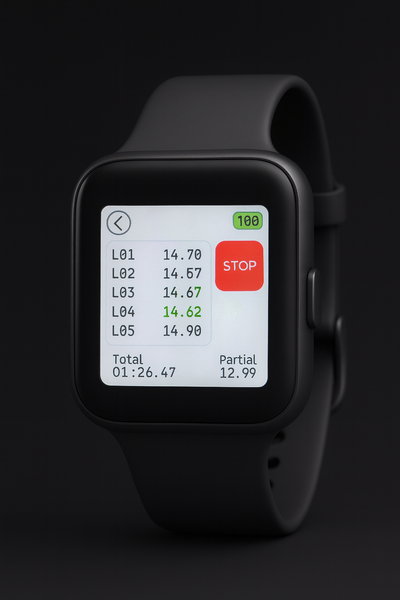
Stopwatch Mode
Independent stopwatch with lap timing.
Interface
Lap Table (Center): Scrollable list of laps (LAP #, LAP TIME) --> purple for fastest,
green for fast (within 0.1s from fastest)
Total Time (Bottom-Left): Cumulative time
Current Lap (Bottom-Right): Ongoing lap time
Controls
1. Press physical button or tap START
2. Press physical button for new lap
3. Tap STOP to pause
4. Tap RESUME to continue
5. Tap RESET when stopped
Note: Automatically resets and starts when race begins.
10
Strategy Mode
Calculate fuel consumption and predict race autonomy.
Interface
Tank Size Toggle (Top-Right): Switch between 75cc/125cc
Track Time (Left): Minutes (0-15), Seconds (0-55, 5-sec increments)
Remaining Fuel (Right): 0-150cc (5cc increments)
EST. RUN TIME (Bottom): Calculated total autonomy (MM:SS)
Usage
1. Set tank size (75cc or 125cc)
2. Fill tank completely
3. Run timed session on track
4. Measure remaining fuel
5. Input track time (left rollers, minutes:seconds) and remaining fuel (right roller)
6. View estimated total autonomy
Example:
• Tank: 125cc, Time: 5:00, Remaining: 75cc
11
• Consumed: 50cc, Autonomy: 12:30
Tip: Build in 20 seconds safety margin for pit stops.
12
Transponder Integration
Real-time lap timing from transponder system via WiFi.
Prerequisites
• WiFi connection (recommended before entering)
• Active transponder
Setup
1. WiFi: Short press WiFi button (turns green), or just enter the page (the watch will
connect automatically to the network if available)
2. Transponder Number (only first setup or new transponder):
• Tap Transponder button
• Swipe right to QR Code page
• Scan QR with phone
• Insert transponder number
• Watch shows "All set"
13
3. Swipe left, tap START
Live Timing Interface
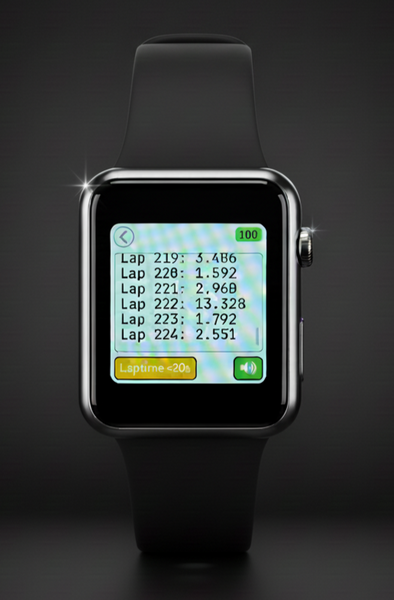
Display: Scrollable lap list with:
• LAP #, LAP TIME
• Best overall lap (purple)
• Auto-updates every 3 seconds
Controls:
14
• START: Begin fetching
• CONTINUE: Resume after inactivity
• Back: Stop and return to Mode Selection
Status Messages
• "Fetching data...": Normal operation
• "No valid session...": Scan QR code
• "Connecting...": WiFi connecting
• "WiFi not connected": Enable WiFi
• "Rescan QR code...": Session invalid
Smart Features
• Pauses 8 sec after new lap
• Stops after 30 sec inactivity
• Manual scroll pauses auto-scroll (resumes after 3 sec)
15
Settings & Configuration
WiFi Settings
Access: Long press WiFi button (1 sec) from Mode Selection
Features:
• Network list with status (green checkmark = connected)
• Connect to new networks or forget saved ones
• Best practice: save max 2-3 networks
Password Setup:
1. Click on the network to connect
2. Tap Connect, instructions will appear (also reported below)
3. Scan QR code with phone and close the camera
4. A window will appear on your phone, enter password of the network from your
phone (you will have to use phone's hotspot most likely)
5. Watch shows green checkmark (up to 10 sec)
6. YOU ONLY NEED TO SET THE PASSWORD ONCE FOR A GIVEN
NETWORK (unless the password changes, the watch will remember it and
connect automatically in the future)
Software Updates
16
Access: Tap gear icon from Mode Selection
Process:
1. Connect to WiFi first, or just enter the page (the watch will connect automatically
to the network if available)
2. Tap CHECK UPDATES
3. If available, tap INSTALL UPDATE
4. Green progress bar appears
5. Takes 2-3 minutes
6. Warning: Requires stable connection and sufficient battery
17
Power Management
Battery Indicator
• Bright green border when charging
Auto Power Saving (Watch Mode Only)
• Screen off after 10 sec inactivity (only in watch mode, othewise screen is always
on)
• WiFi off after 30 min inactivity (only in watch mode, WiFi never turns off while you
are using the watch functions)
Charging
• Connect USB-C cable
• Full charge: 2-3 hours
• Fully functional while charging
Battery Life
• Watch mode: 8-12 hours
• With WiFi: 4-8 hours
Tips
• Return to watch mode for auto screen-off
• Disable WiFi when not using transponder
• End race sessions when idle
• Charge before race days
18
Tips & Troubleshooting
General Tips
• Data Persistence: Time, WiFi credentials, and session code are saved
• Quick Wake: Tap anywhere on screen
• Navigation: Back arrow always returns to Mode Selection
Race Mode
Pre-Race:
• Set accurate refuel time from testing
• Ensure battery charged
• Practice pit workflow
During Race:
• Monitor "NEXT PIT" timer
• Check RACE TIME for progress
• Swipe for pit history
Pit Workflow:
1. Call driver as timer approaches zero
2. Press button to start pit stopwatch
3. Complete pit work
4. Press button when car leaves
Transponder Mode
Setup for Practice:
1. Configure WiFi day before (use phone hotspot)
2. Session link available after first lap
3. Keep phone nearby for better signal
Troubleshooting
Watch won't wake:
19
• Press and hold physiscal button (2 sec) to shut down the watch
• Short press physical button to restart the watch
• Check battery level
WiFi won't connect:
• Verify network name/password has not changed since last time
• Long press on WiFi icon, select the network and click FORGET, the connect
again with the usual procedure (QR code)
• Check signal strength
• Restart watch
Laptime not updating:
• Confirm WiFi connected (green icon in main page)
• Insert the session link again (swipe left and scan QR code)
• Check transponder is active


Wallie builds is the top option for any racer looking to have the best available car at the track. These kits are built to be winners and give you the best opportunity for wins and podiums.
- Wallie Builds will cover shipping charges to anyone in the US.
- Once the sale leaves beachRC and arrives at Wallie Builds we will take full responsibility for the order.
- Anything with the build will be handled by Wallie Builds.